Choosing channels and accounts
Which channels a campaign uses, which of your accounts send, how work is shared between several accounts, and what to do with people you already know.
2 min read
One campaign can reach people on LinkedIn, by email and on WhatsApp. This step decides which channels the campaign uses and which of your accounts send on each. Using more than one channel is the simplest way to get more replies: people who never check LinkedIn often answer an email, and a WhatsApp after a friendly conversation feels natural.
In short: tick the channels, choose the sending account for each, decide whether people you're already connected with are included, and press Save.
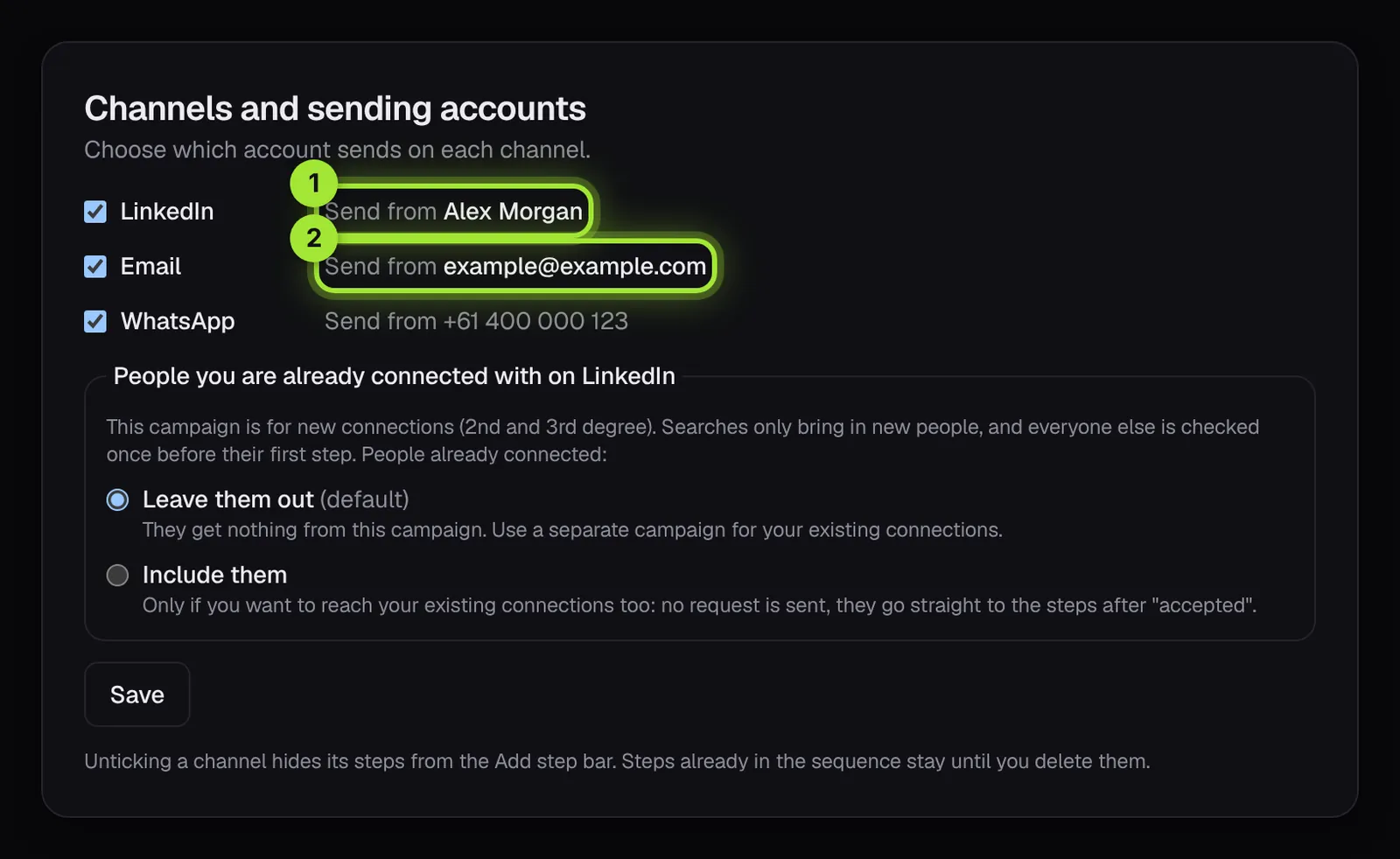
The three channels
- LinkedIn: profile visits, connection requests, messages, likes and comments, all from your own profile.
- Email: from your own mailbox. Only people with an email address get email steps; everyone else skips them.
- WhatsApp: to people whose phone number you have, from your own number.
Not connected yet? Press Connect it now. It opens in a new tab and your campaign waits for you, with nothing lost.
Choosing the sending accounts
Next to each channel you see which account sends. If you've connected more than one account on a channel, you can tick several. Outboundli then:
- Shares new people between them, by how much room each account has that day.
- Keeps each person with the same account for the whole conversation, so nobody hears from two different people.
- Lets each account follow its own safe daily limits, so two LinkedIn accounts roughly double your reach.
Want more reach? Connect another account on the Accounts page, then tick it here.
People you're already connected with
Campaigns are for new connections (2nd and 3rd degree) by default. People already connected to you are left out, so they never get a "nice to connect" message by mistake.
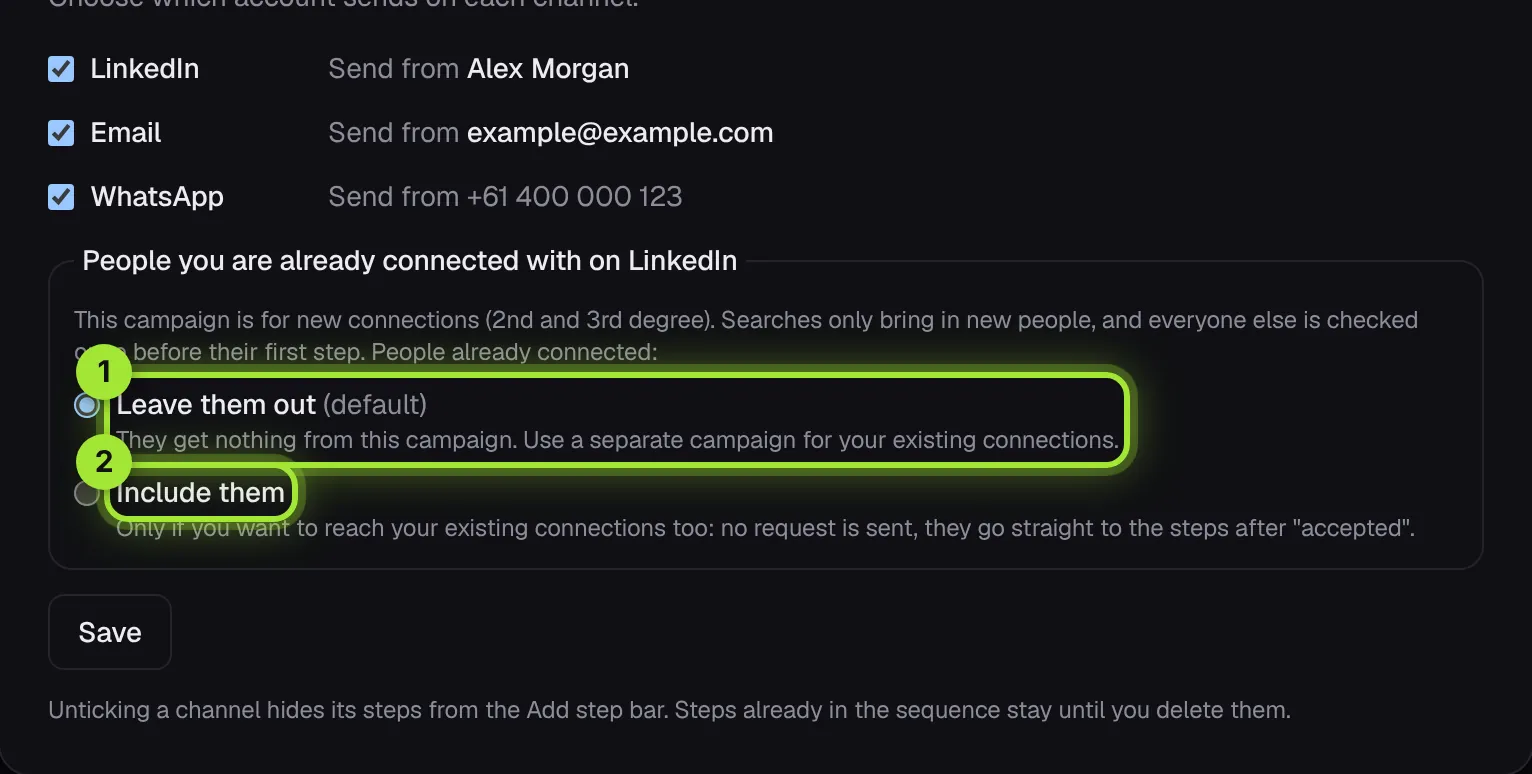
- Leave them out (default): they get nothing from this campaign. Use a separate campaign for existing connections.
- Include them: no request is sent; they go straight to the steps after "accepted". Choose this when you want to message people you already know, for example past clients.
Example: a three-channel campaign
A recruitment firm ticks all three channels. LinkedIn sends the connection request and the first message. If someone hasn't accepted after 14 days, they get a short email instead. If they reply on email and share a mobile number, the next follow-up can go on WhatsApp. If they reply on any channel, everything else stops.
Questions people ask
What if someone has no email address?
They simply skip the email steps and carry on with the rest.
Can I turn a channel off later?
Yes. Unticking a channel hides its steps from the Add step bar. Steps already in the sequence stay until you delete them.
Will two of my accounts ever contact the same person?
No. Each person stays with one account, and people already in another campaign are skipped automatically.
Set it up yourself, or let us help
Most people are up and running in about 10 minutes with this guide. Prefer a hand? Book a free 30-minute setup call and Sahil will set it up with you, on your screen. Or press Help in the corner for a quick answer.